Seller Dashboard Guide
Everything you need to run your store on Souqtopia: adding products, following orders, and answering and selling to customers with AI. Each section is short and uses screenshots of the dashboard itself.
- 0Before you start
- 1Signing in and the menu
- 2Adding a product
- 3Managing your products
- 4Bulk import
- 5Orders
- 6AI Sales
- 7Analytics
- 8Common mistakes
Before you start
Five facts that prevent most problems.
- Address: the dashboard is at souqtopia.com/seller and works on a phone or a computer.
- Same account: sign in with the phone number and password you use in the Souqtopia app.
- Verification first: identity verification is done in the app (your profile → Become a seller). You can open the dashboard before it is approved, but you cannot add products until it is.
- Live streams are in the app: you go live from the phone app. The dashboard is for products, orders and AI Sales.
- The dashboard is in Arabic: this guide quotes each button in Arabic exactly as you will see it, with its meaning in brackets. Set your browser to Arabic too, because some error messages appear in English otherwise.
Signing in and the menu
Sign in and move between sections.
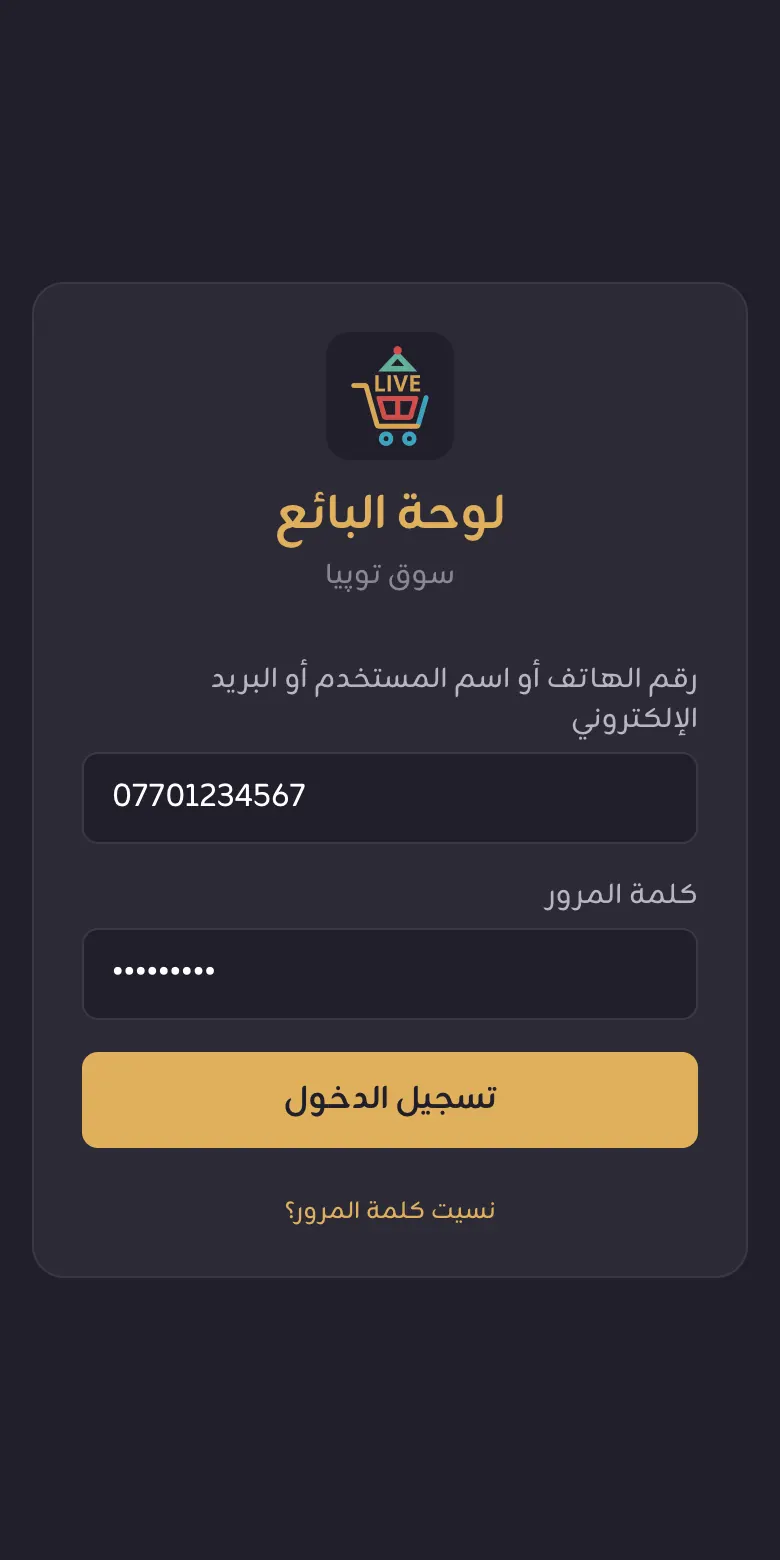
- Open souqtopia.com/seller.
- Enter your phone number (e.g. 07xxxxxxxxx), username or email, then your password.
- Press تسجيل الدخول (Sign in). The المنتجات (Products) page opens.
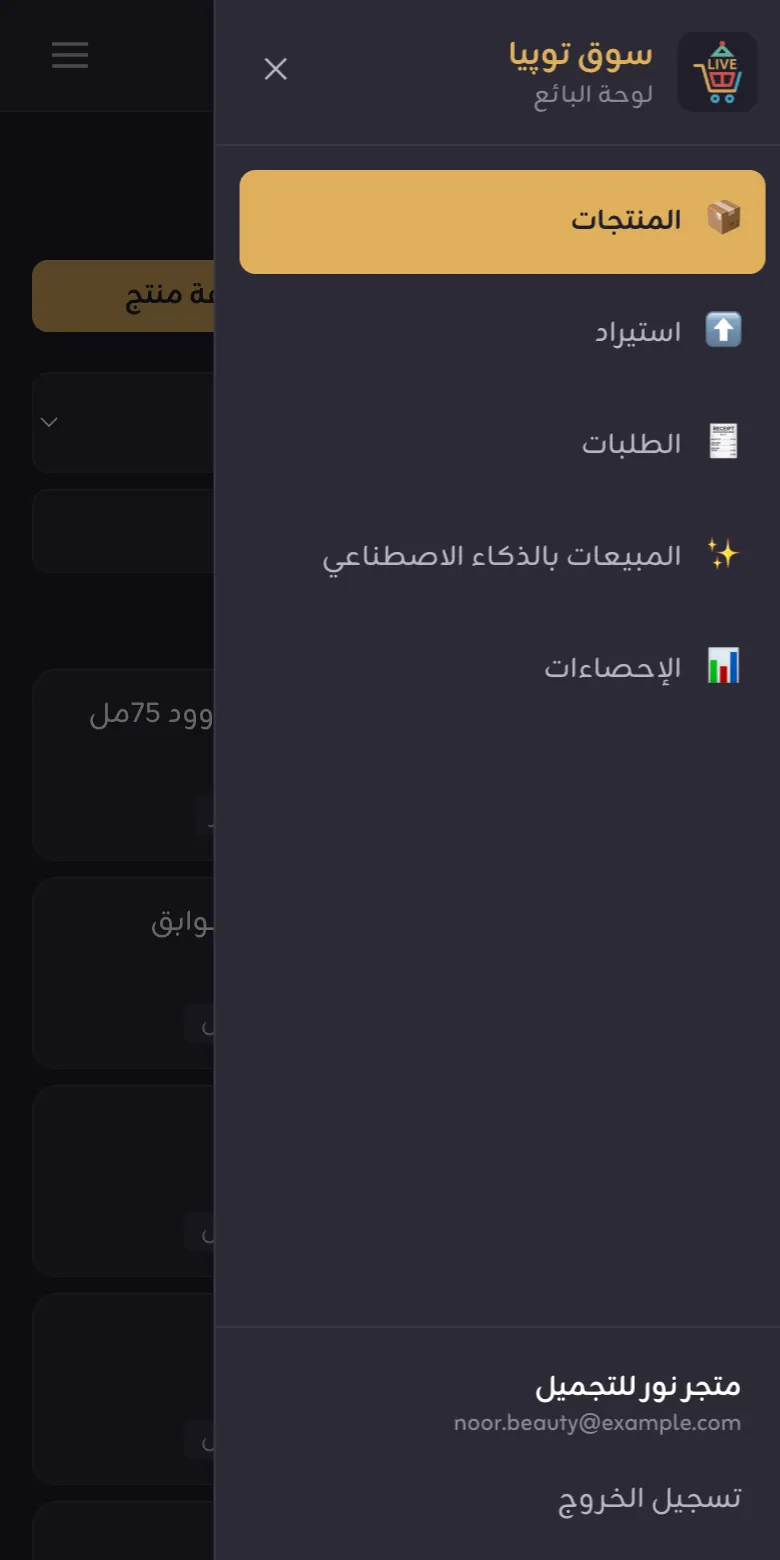
- On a phone, tap the ☰ menu button at the top to see every section.
Adding a product
Add one product with its photos, price and stock.
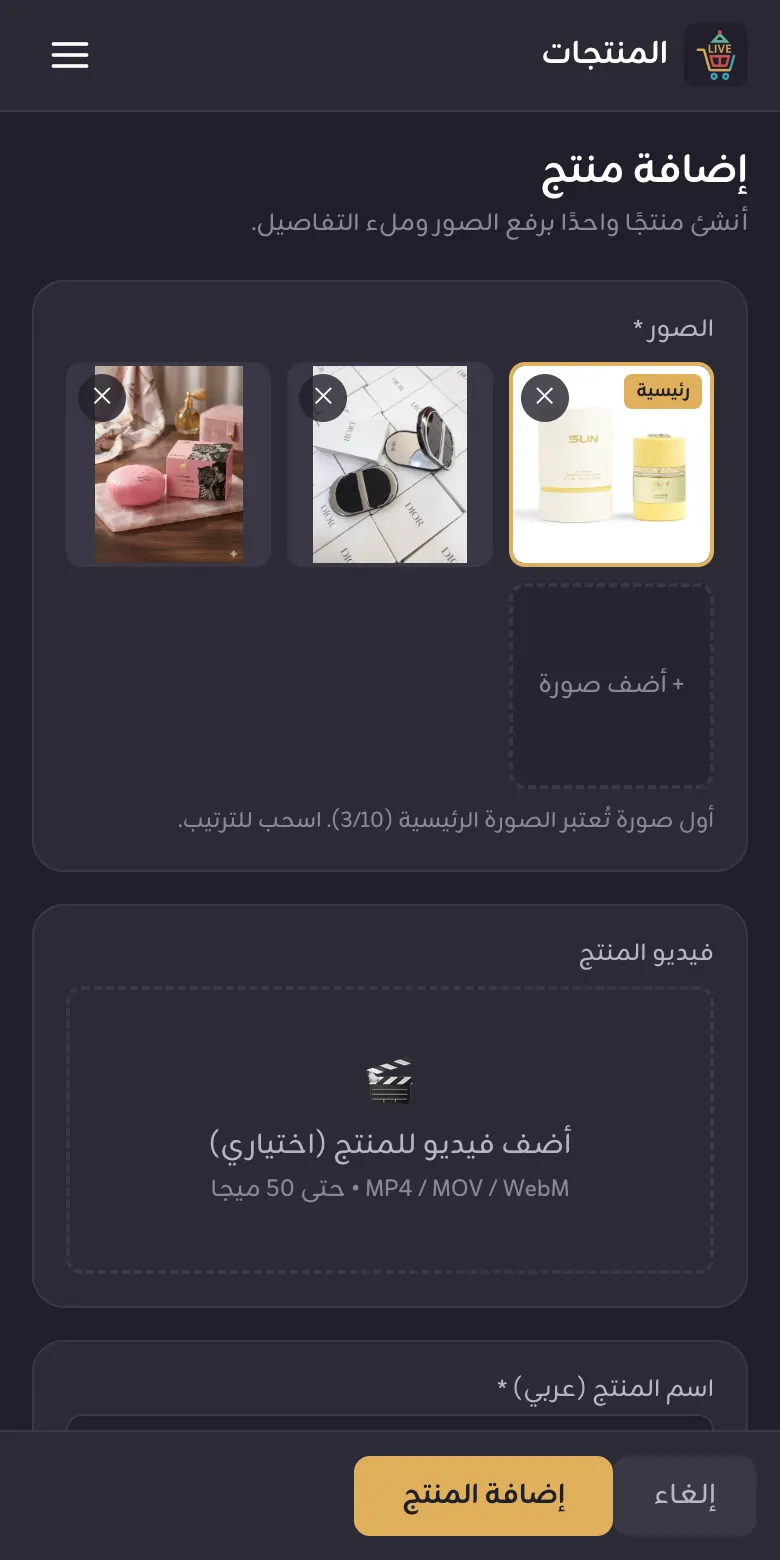
- On Products, press + إضافة منتج (Add product).
- Press + أضف صورة (Add photo) and choose 1 to 10 photos. The first photo is the main one customers see first.
- If you have a product video, press أضف فيديو للمنتج (اختياري) (Add a video, optional).
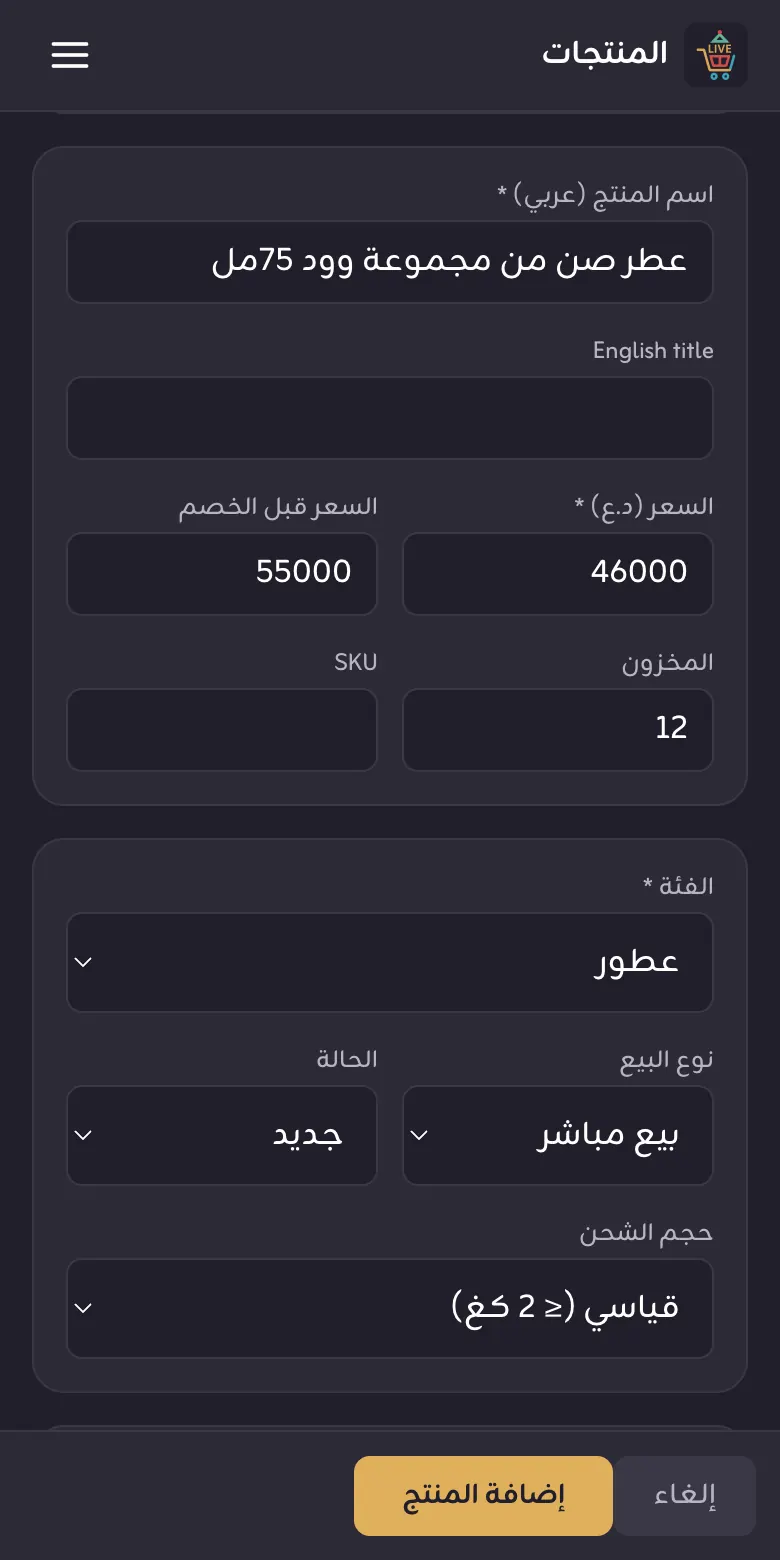
- Type a clear اسم المنتج (عربي) (Arabic name), e.g. "Sun perfume 75 ml".
- Enter the السعر (د.ع) (price in IQD). For a discount, put the old price in السعر قبل الخصم (price before discount).
- Enter how many pieces you have in المخزون (stock).
- Choose the right الفئة (category). The dashboard pre-selects the first category in the list.
- Pick the حجم الشحن (shipping size) by weight and add a short description.
- Press إضافة المنتج (Add product). The product is visible to customers straight away.
Managing your products
Edit a product, hide it, and change many products at once.
What the product status means
| Status | Meaning |
|---|---|
| نشط (active) | Visible to customers. |
| معطّل (inactive) | Hidden. Either you hid it, or you imported it and have not activated it yet. |
| جديد — للمراجعة (new, to review) | A new draft not yet activated. |
| مسحوب من المصدر (removed at source) | Linked to an outside store and no longer listed there. |
Edit or hide a product
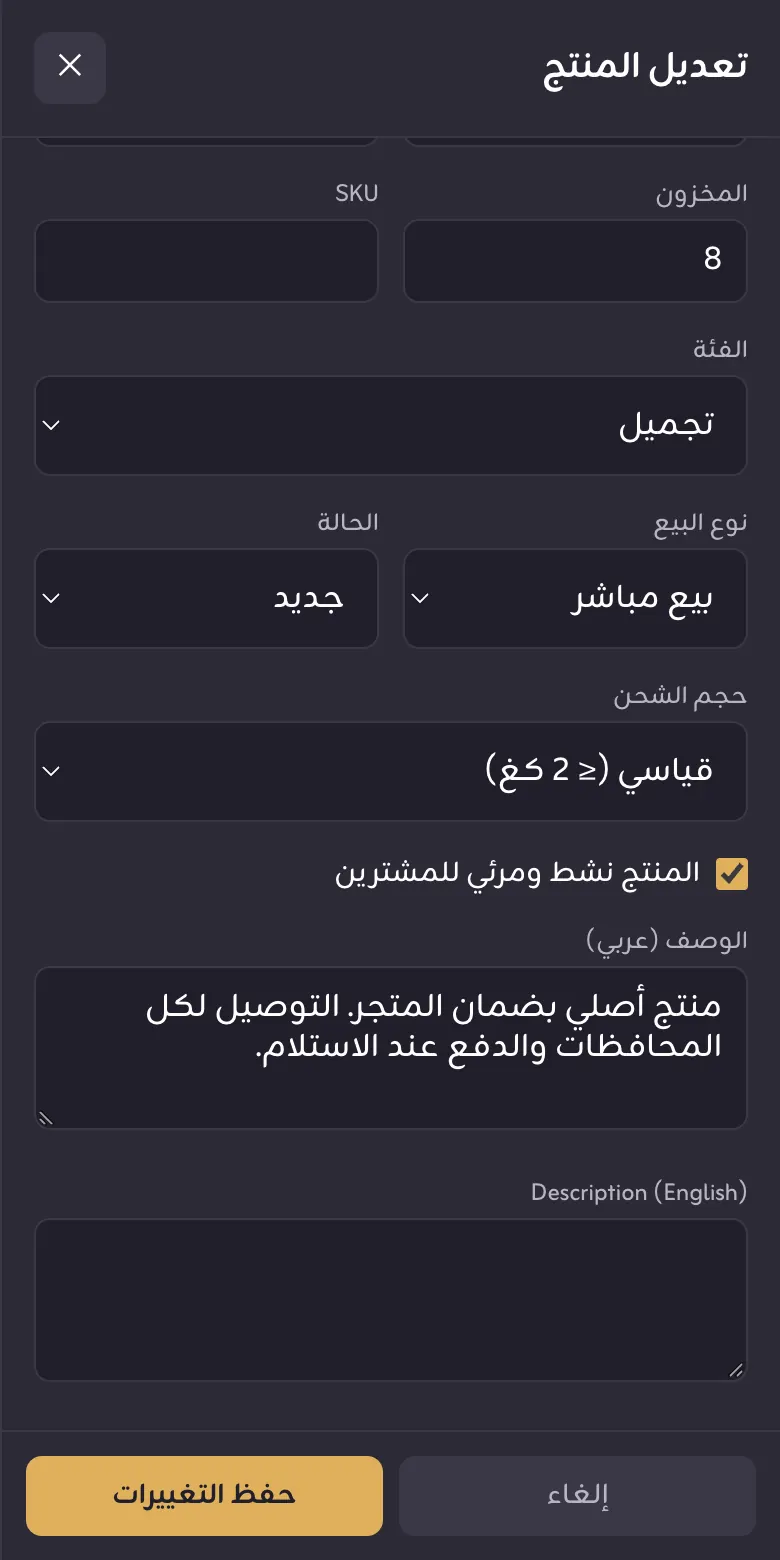
- Tap the product in the list. The تعديل المنتج (Edit product) panel opens.
- Change the price, stock, photos or any field.
- To hide it from customers, untick المنتج نشط ومرئي للمشترين (active and visible to buyers).
- Press حفظ التغييرات (Save changes).
Change many products at once
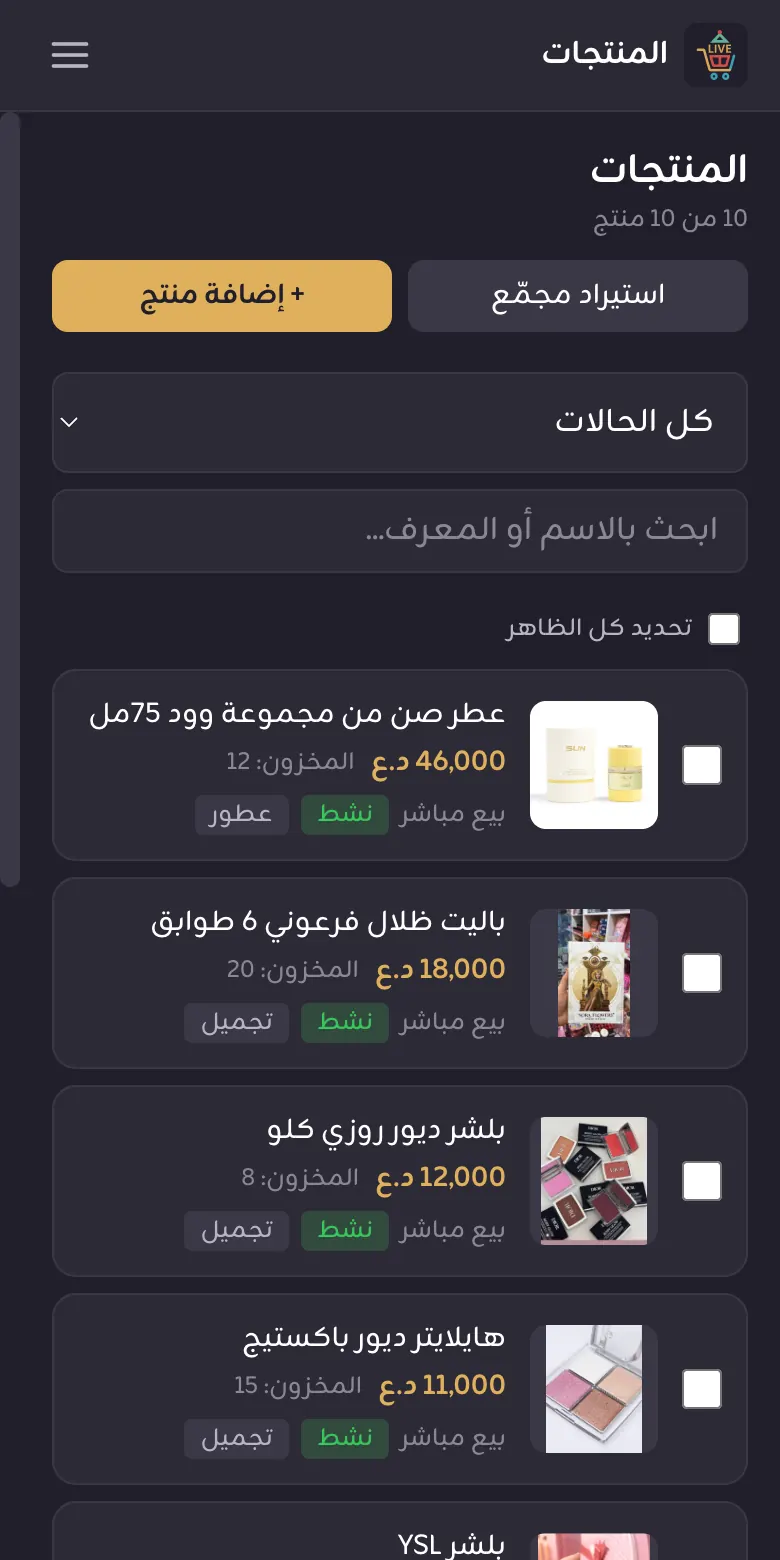
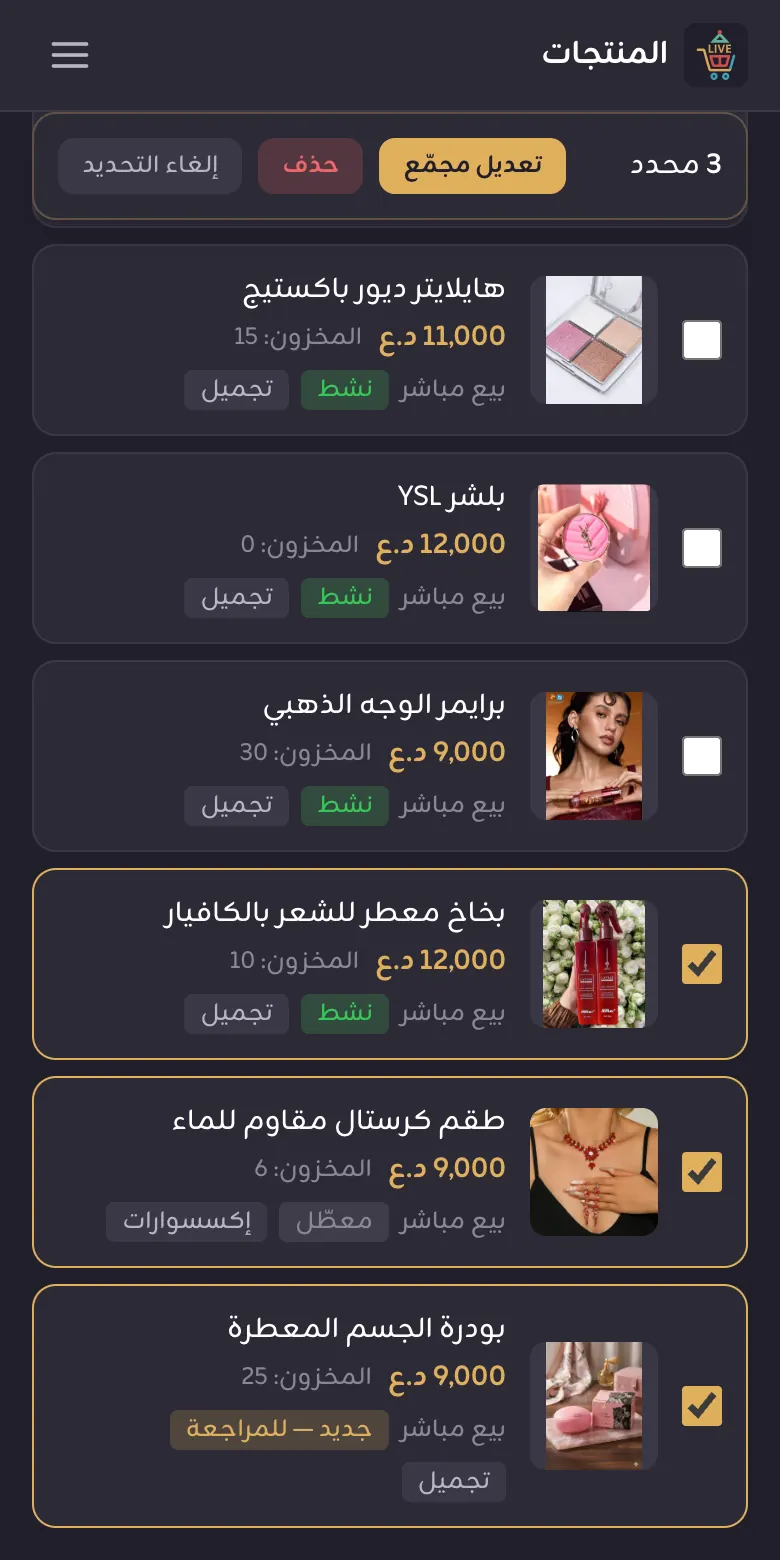
- Tick the box next to each product, or press تحديد كل الظاهر (select all shown).
- A bar shows how many are selected. Press تعديل مجمّع (Bulk edit).
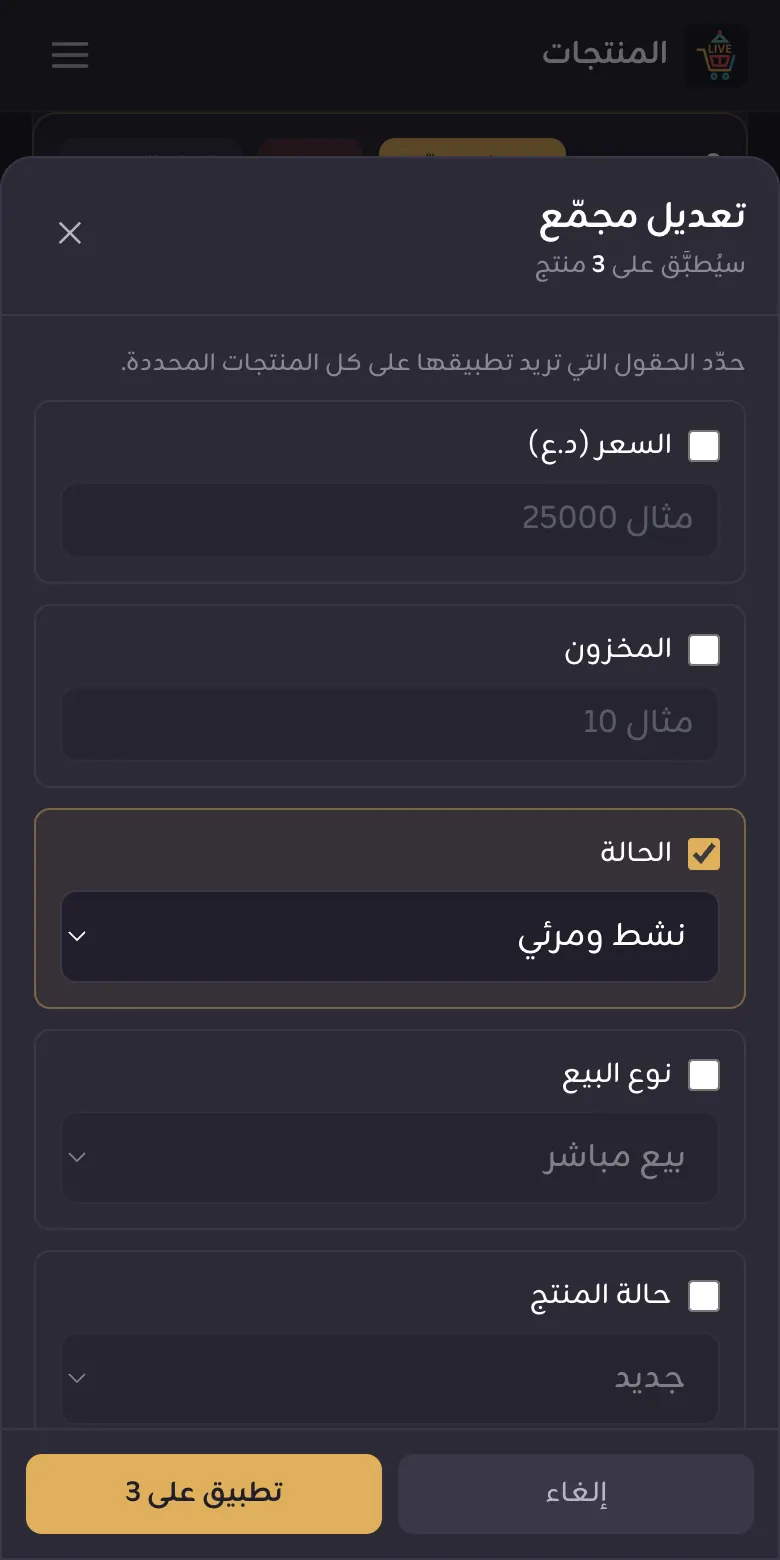
- Tick only the field you want to change (e.g. الحالة → نشط ومرئي, status → active). Unticked fields stay as they are.
- Press تطبيق على (Apply to) with the number of products.
Bulk import
Add dozens of products at once: from photos on your device, a Telegram channel or an online store.
From photos on your device
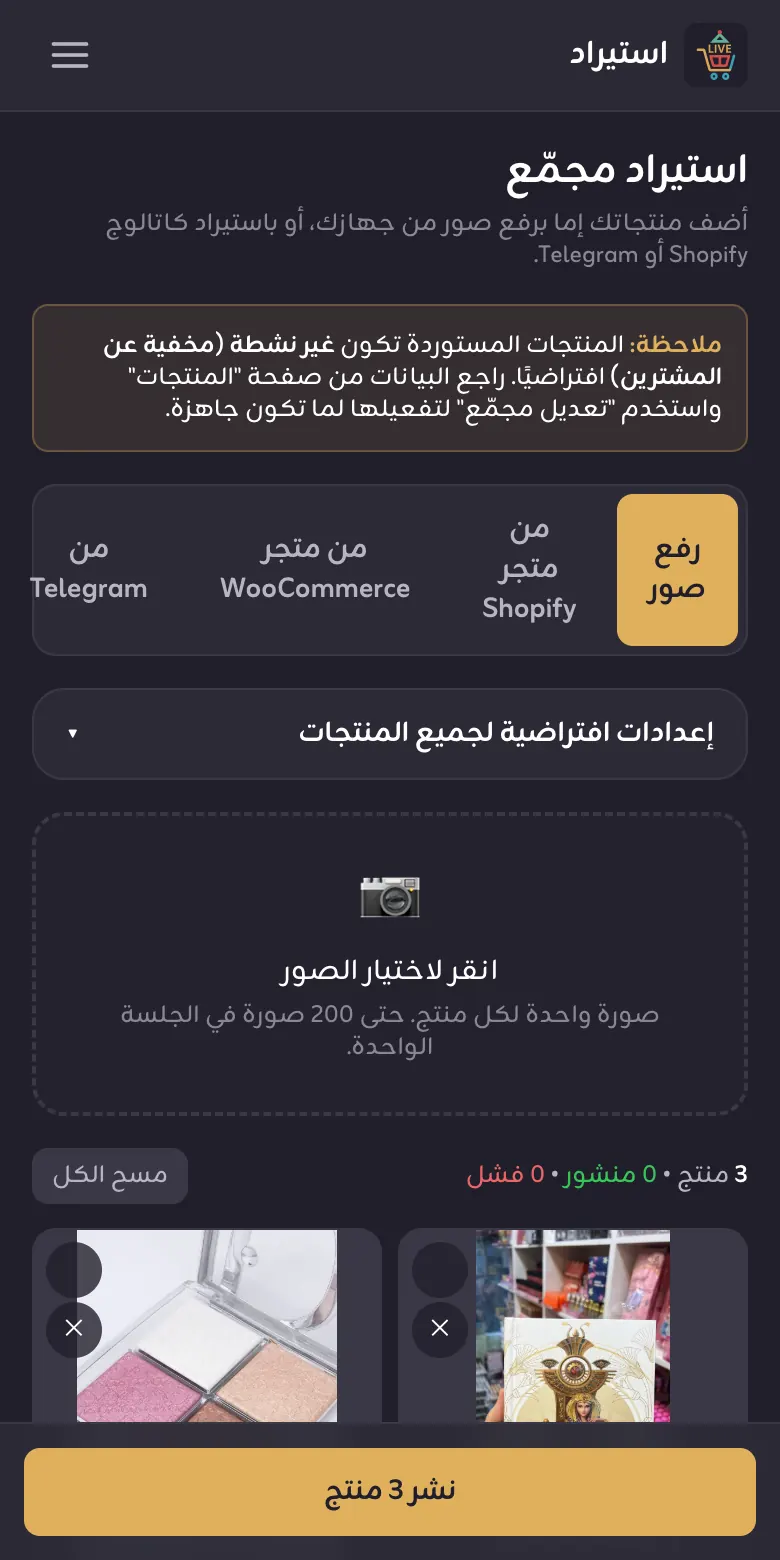
- Choose استيراد (Import) in the menu and stay on the رفع صور (Upload photos) tab.
- Open إعدادات افتراضية لجميع المنتجات (defaults for all products) and choose the الفئة (category); it applies to the whole batch.
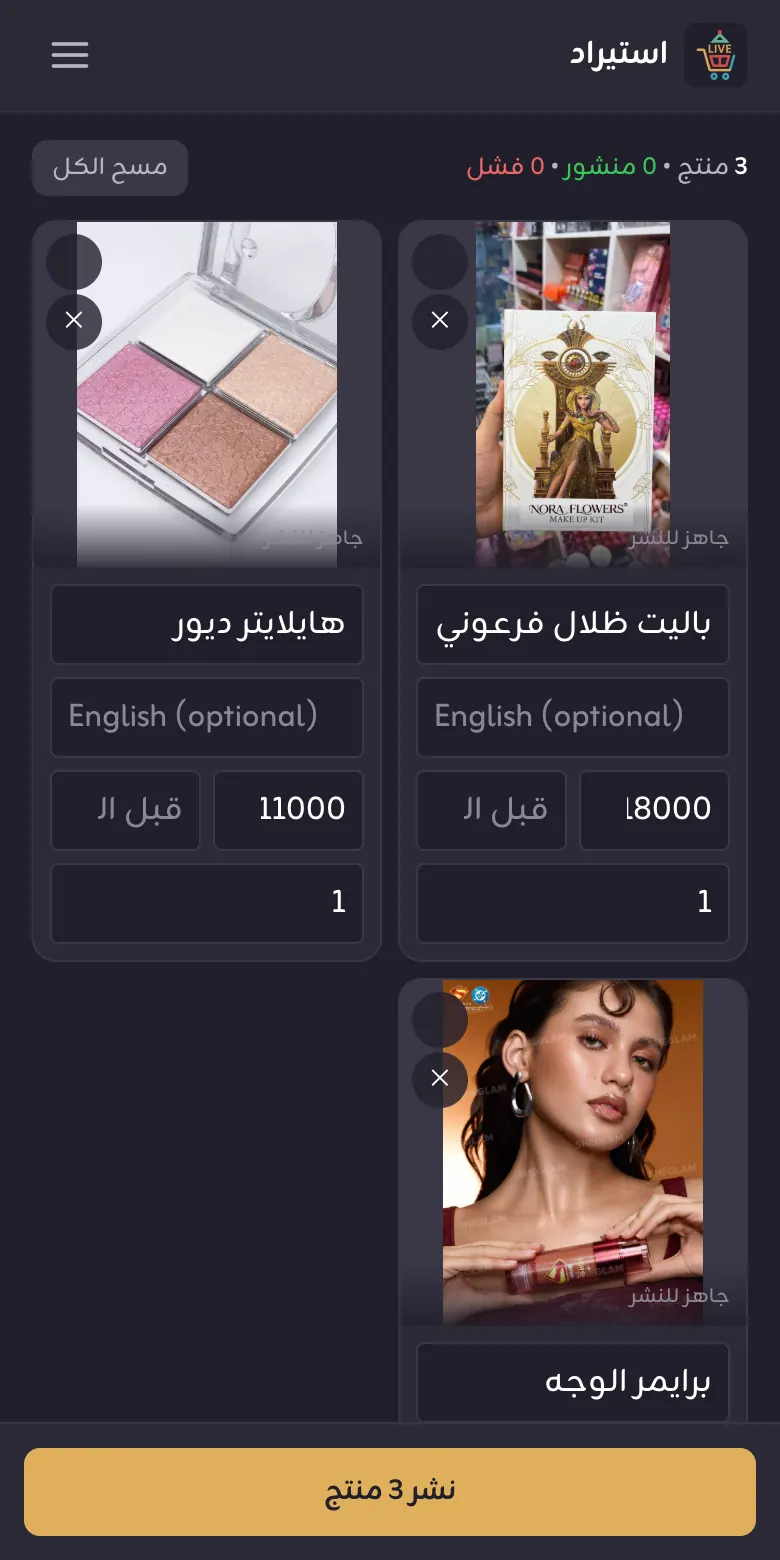
- Press انقر لاختيار الصور (choose photos). Each photo becomes one product.
- If several photos show the same product, select them and press دمج في منتج واحد (merge into one product).
- Enter a name, price and stock for each. To give all the same price use سعر موحّد (one price) then تطبيق (apply).
- Press نشر (Publish). Wait until each tile shows ✓ منشور (مخفي) (published, hidden).
From a Telegram channel
- On a computer open Telegram Desktop, then the channel → ⋮ → Export chat history.
- Choose photos and videos, format JSON, and export.
- Compress the exported folder into a ZIP file.
- On the من Telegram tab, enter the dollar rate if any prices are in dollars, then press اضغط لاختيار ملف ZIP (choose ZIP file).
- Check each product's name and price, then نشر (Publish).
Every post with a caption starts a new product; photos after it without a caption join that product.
The price is read from a line such as «السعر: 15 الف» (الف means ×1000). Small numbers without «الف» are left blank for you to fill in.
If the caption gives a dozen price, «(درزن)» is added to the name; decide whether you sell the dozen or single pieces and fix the price.
From an online store (Shopify or WooCommerce)
Paste the store address and press جلب المنتجات or قراءة المتجر (fetch / read store), pick the products, then add them to the list and publish. Prices are read as Iraqi dinars, so check every price before publishing.
Orders
Follow your orders, know when to prepare the parcel, and when you can still cancel.
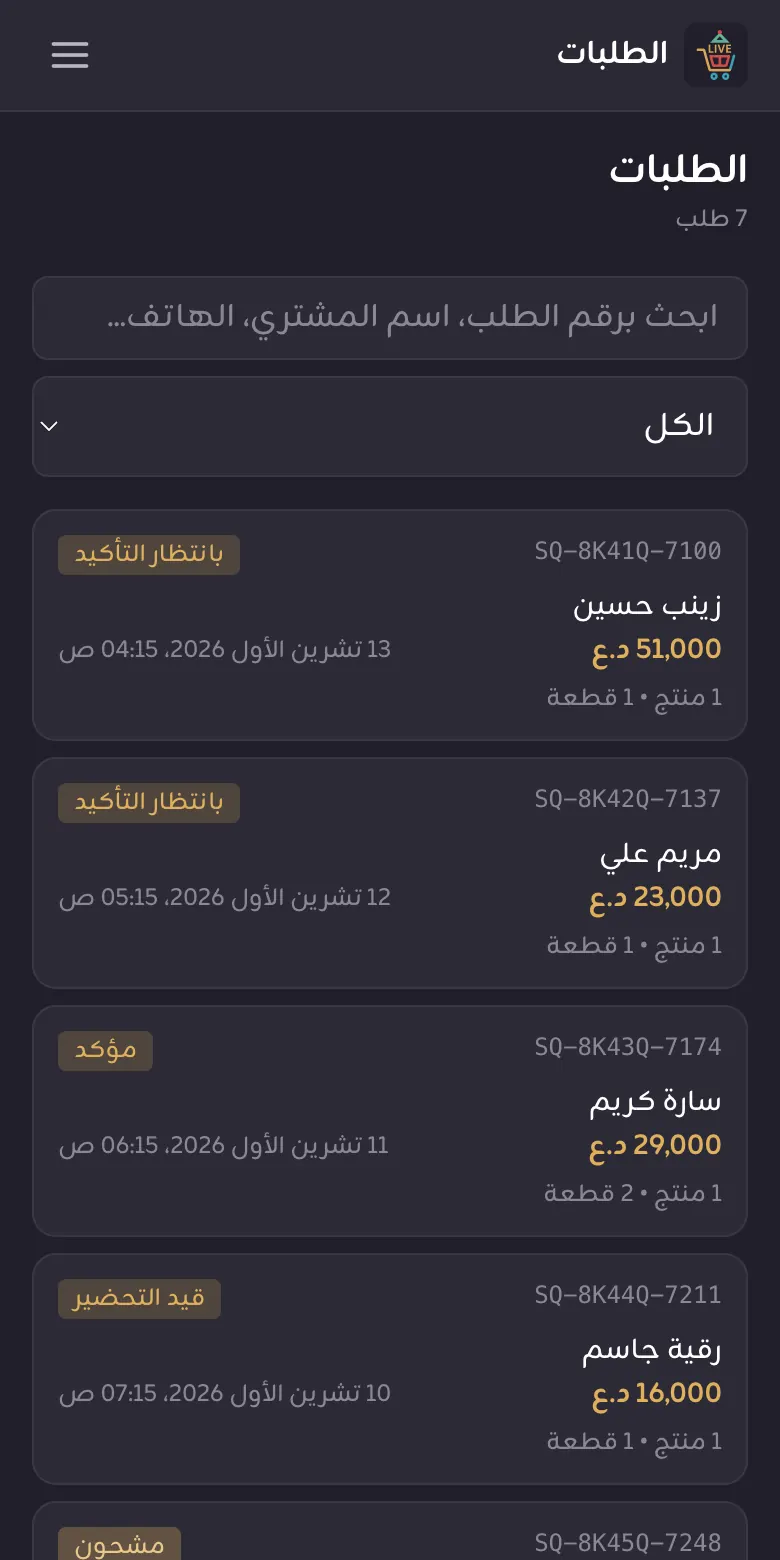
Order status changes automatically as the shipment moves; there is no "confirm" or "ship" button in the dashboard.
| Status | Meaning | What you do |
|---|---|---|
| بانتظار التأكيد (awaiting confirmation) | The order just arrived. | Cancel it if you cannot supply it. |
| مؤكد (confirmed) | Accepted. For 4 hours, any other order from the same customer to the same address joins this order. | Prepare the product. You can still cancel. |
| قيد التحضير (preparing) | A courier has been booked. | Have the parcel ready for pickup. |
| مشحون (shipped) | With the courier. | Nothing. |
| مكتمل (completed) | Delivered and paid. | Nothing. |
| ملغي / مردود (cancelled / returned) | Cancelled or returned. | — |
- Open الطلبات (Orders). Search by order number, customer name or phone, or pick a status.
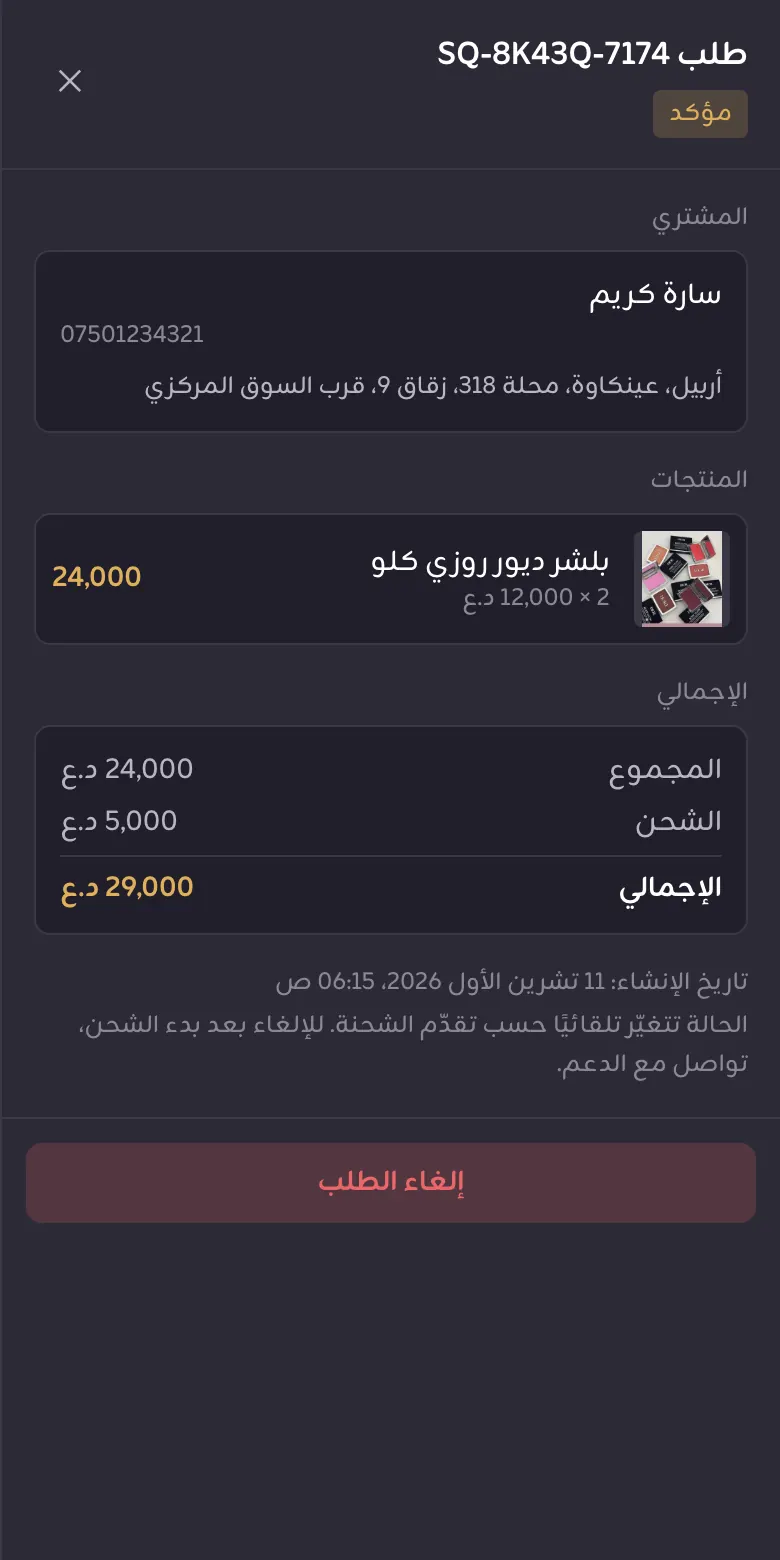
- Tap an order to see the customer, address, products and amount.
- If you cannot supply it, press إلغاء الطلب (Cancel order). This works only while it is awaiting confirmation or confirmed.
AI Sales
An assistant that answers your customers on Instagram and Messenger, shows your products with photos and takes cash-on-delivery orders.
First-time setup
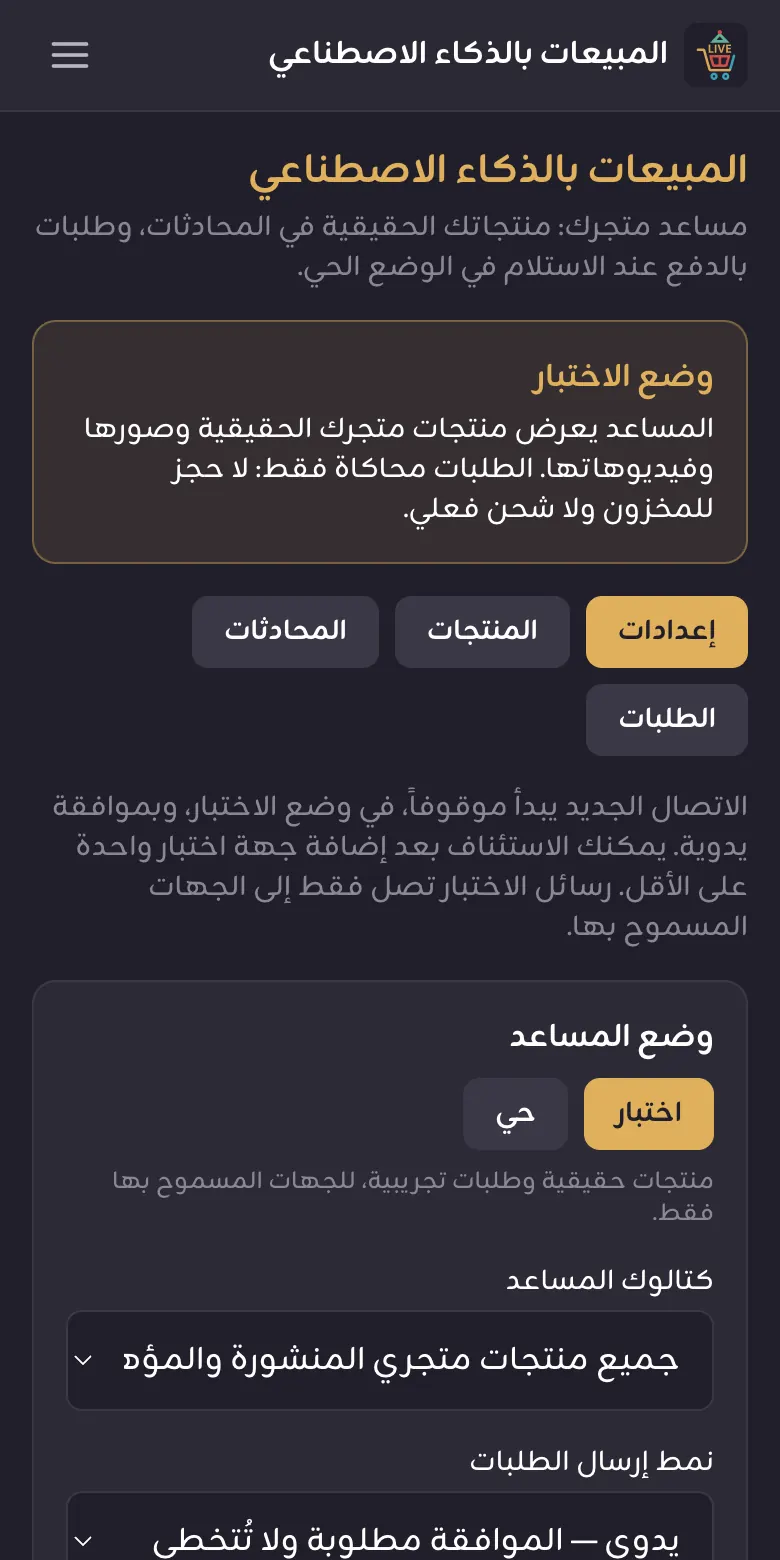
- Open المبيعات بالذكاء الاصطناعي (AI Sales) → إعدادات (Settings). A new account starts in وضع الاختبار (test mode) and paused.
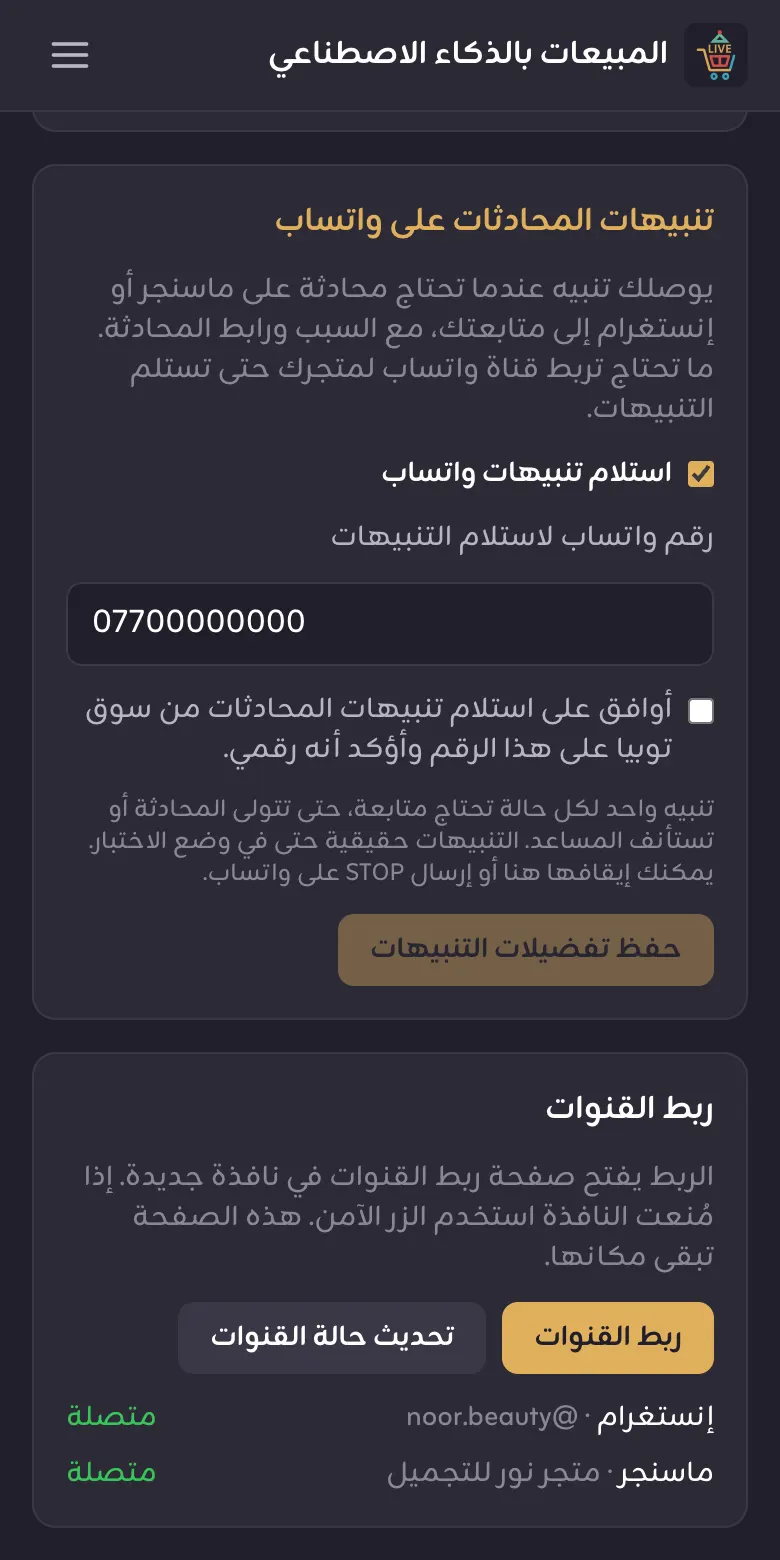
- In ربط القنوات (Connect channels) press ربط القنوات and connect your Facebook Page or Instagram account in the new window. Finish in the same browser.
- Return and press تحديث حالة القنوات (refresh channel status) until it shows متصلة (connected).
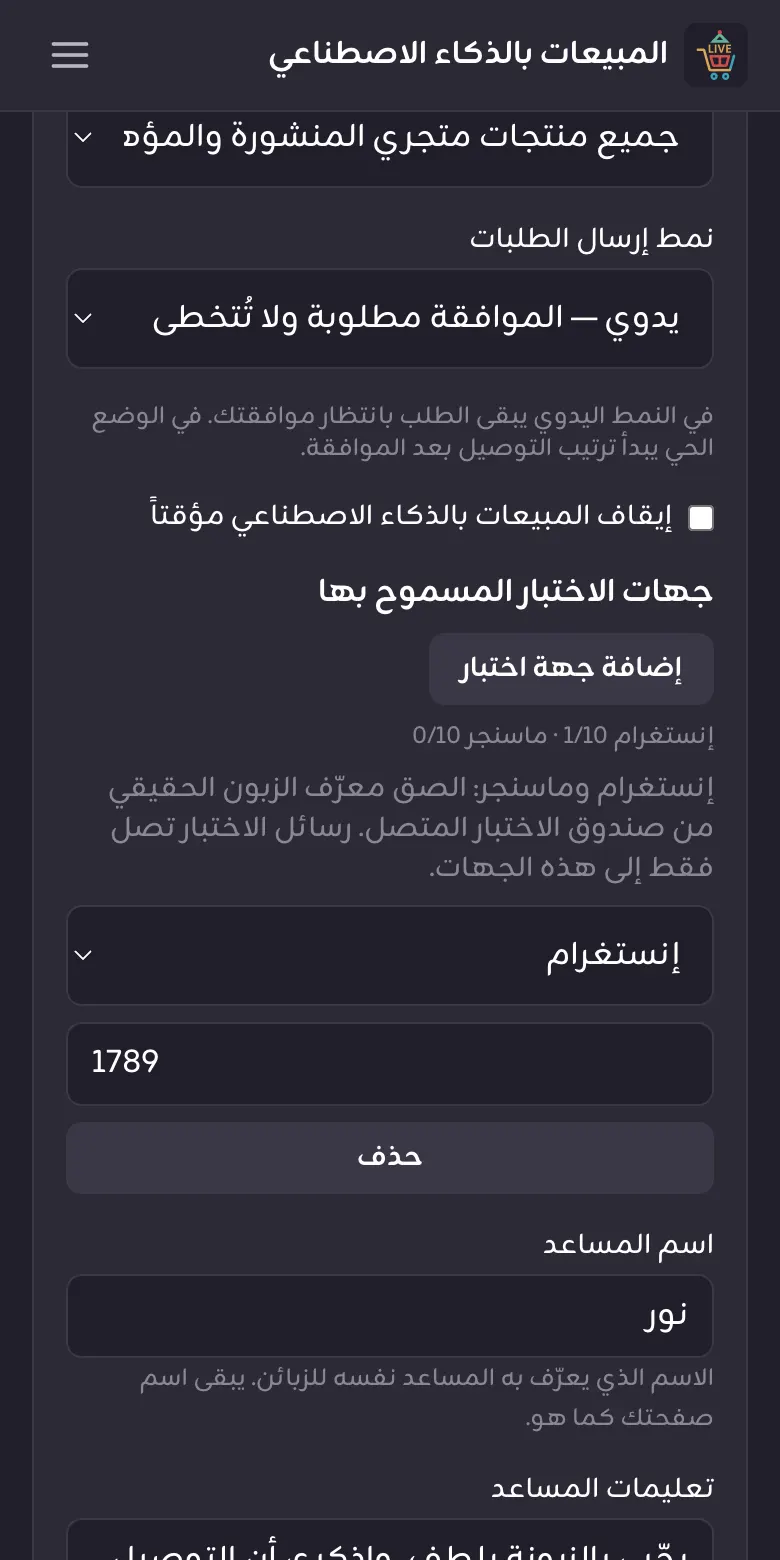
- Fill in اسم المساعد (assistant name) and تعليمات المساعد (instructions): your store policy and whether discounts are allowed.
- Press إضافة جهة اختبار (add test contact) and add an account you will test from.
- Untick إيقاف المبيعات بالذكاء الاصطناعي مؤقتاً (pause AI Sales) and press حفظ الإعدادات (Save settings).
- From the test phone, message your store and order a product. An order is confirmed only when the customer types the confirmation code the assistant sends.
- When you are ready, choose حي (live) and save. From then on orders are real and reserve your stock.
Conversations: when to step in
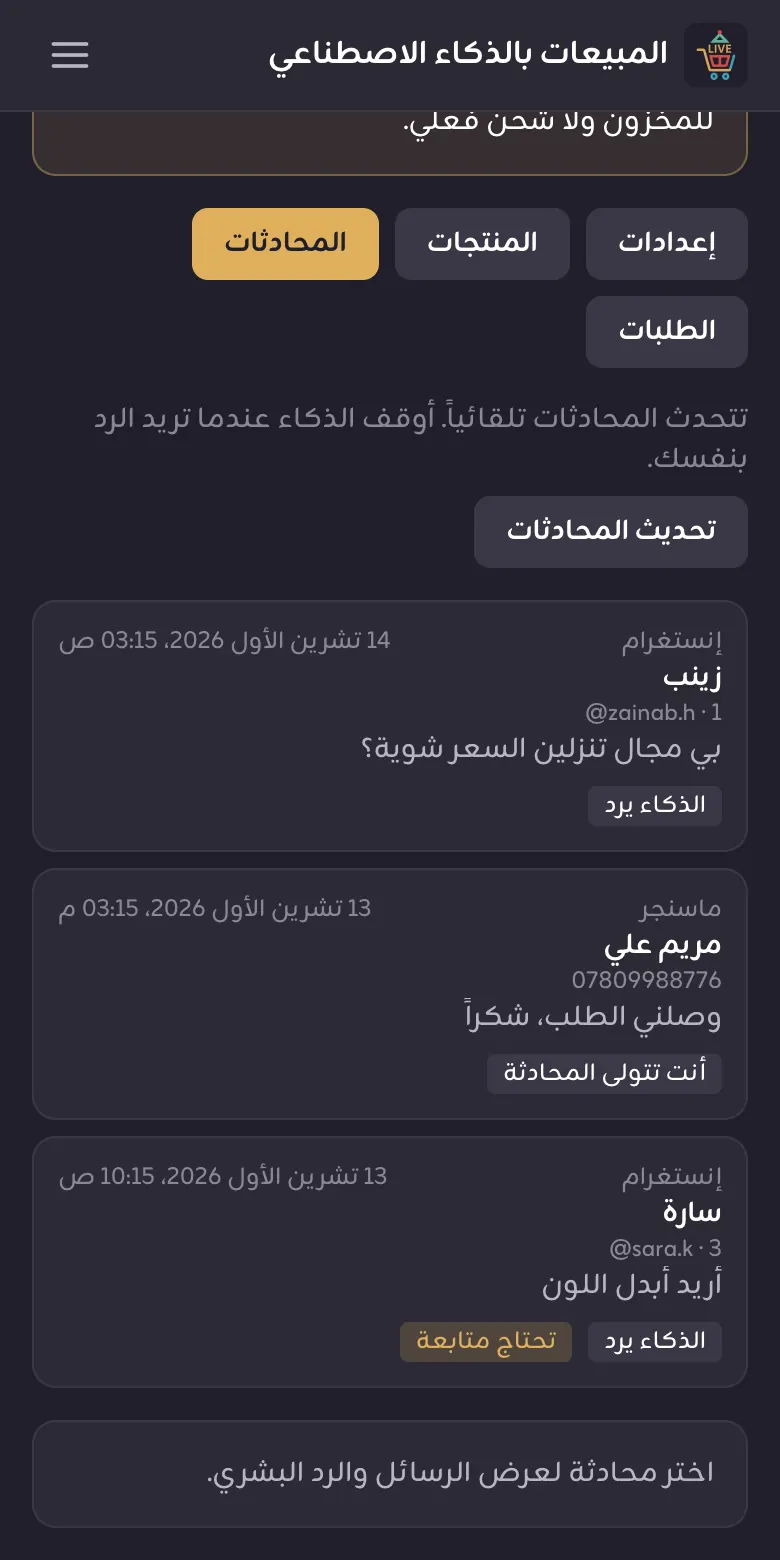
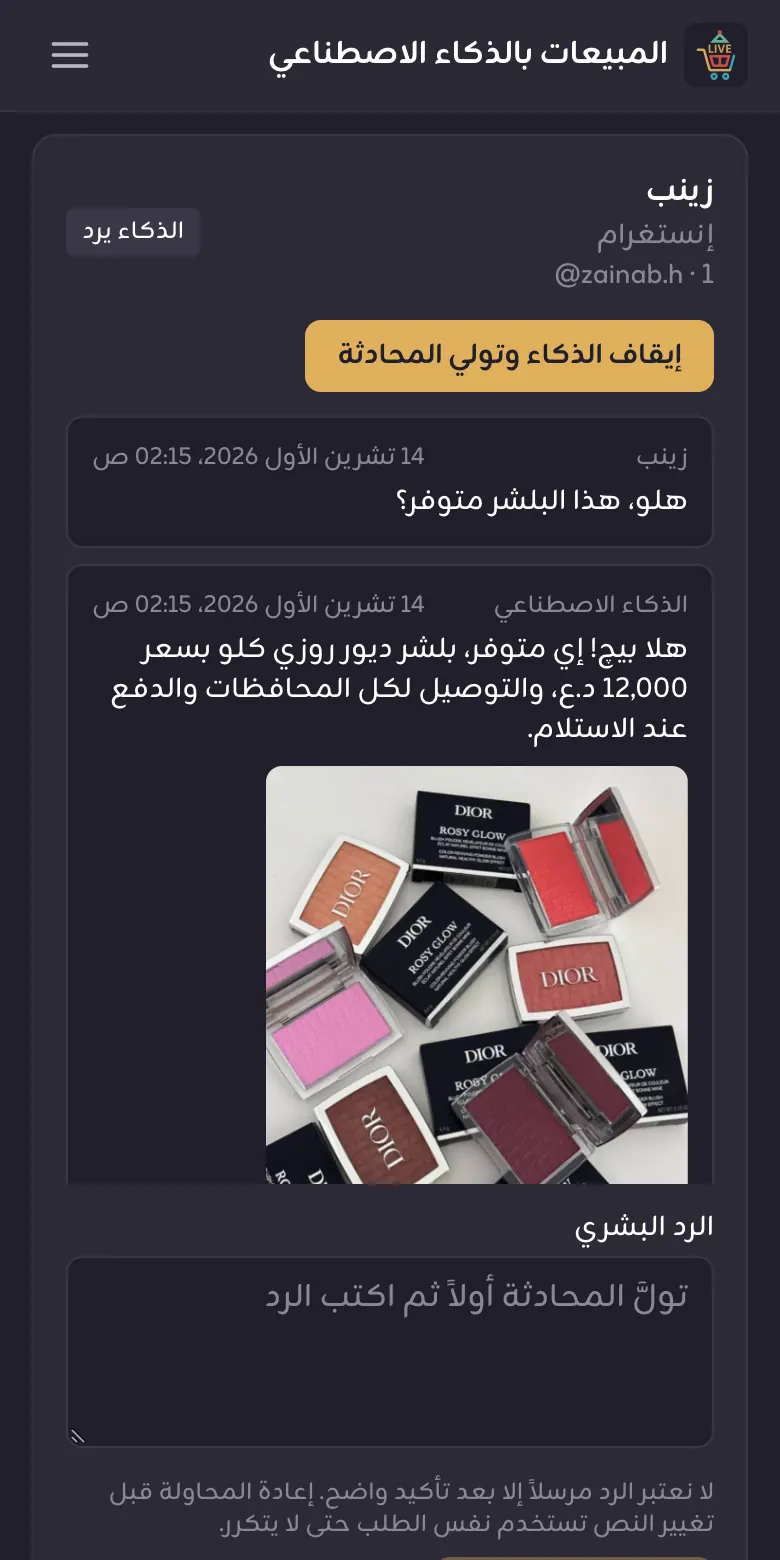
- Open المحادثات (Conversations). A chat marked تحتاج متابعة (needs follow-up) is waiting for you.
- Open it and read the reason.
- Press إيقاف الذكاء وتولي المحادثة (stop AI and take over), type your reply, then إرسال الرد البشري (send).
- When done, press استئناف الذكاء الاصطناعي (resume AI). While you hold a chat, the assistant does not reply in it.
Assistant orders
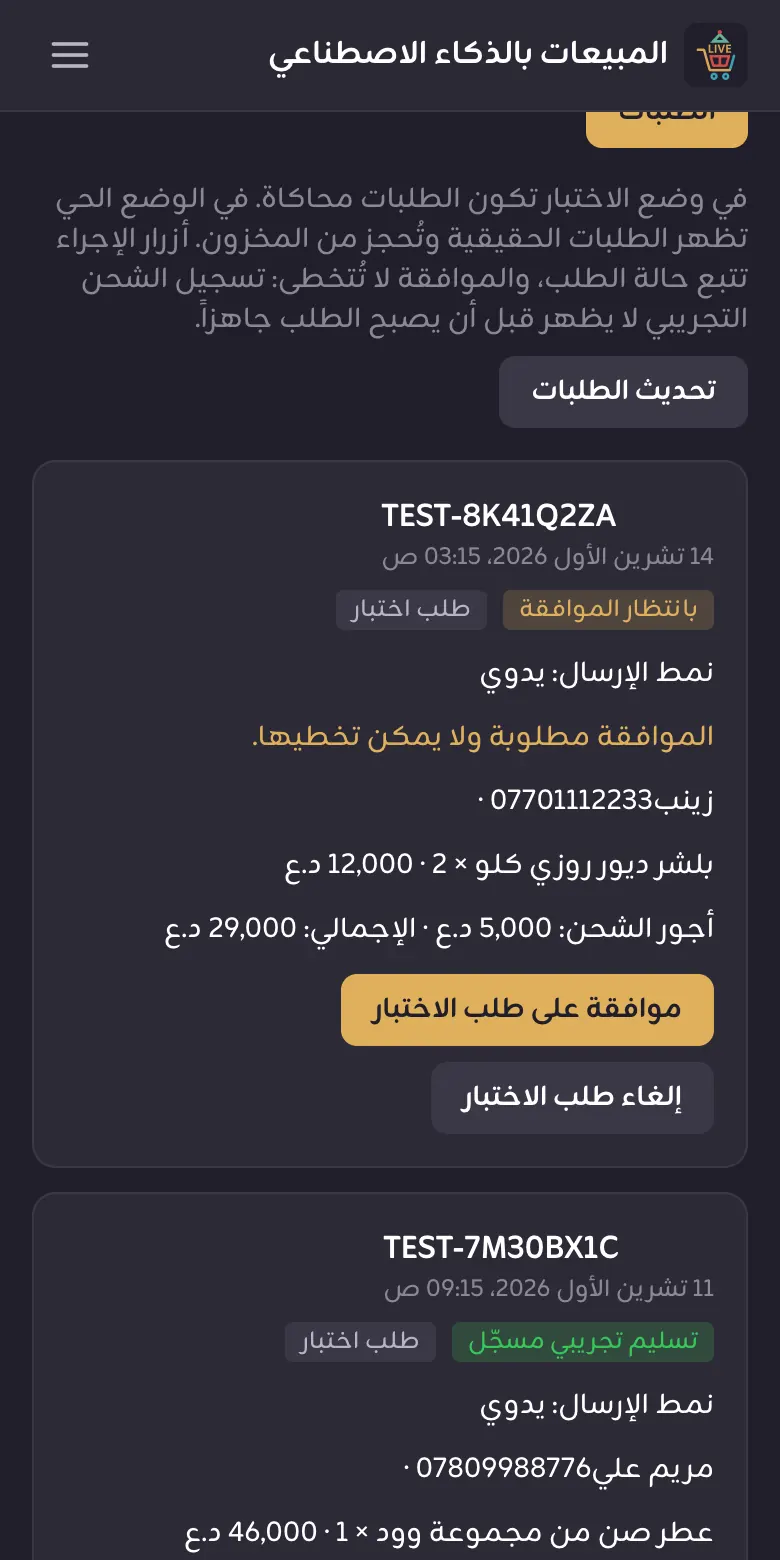
Under الطلبات (Orders) on this page: with manual dispatch, each order waits for your approval. After approval in live mode, the order continues on the main Orders page like any other.
Analytics
Read your store's numbers correctly.
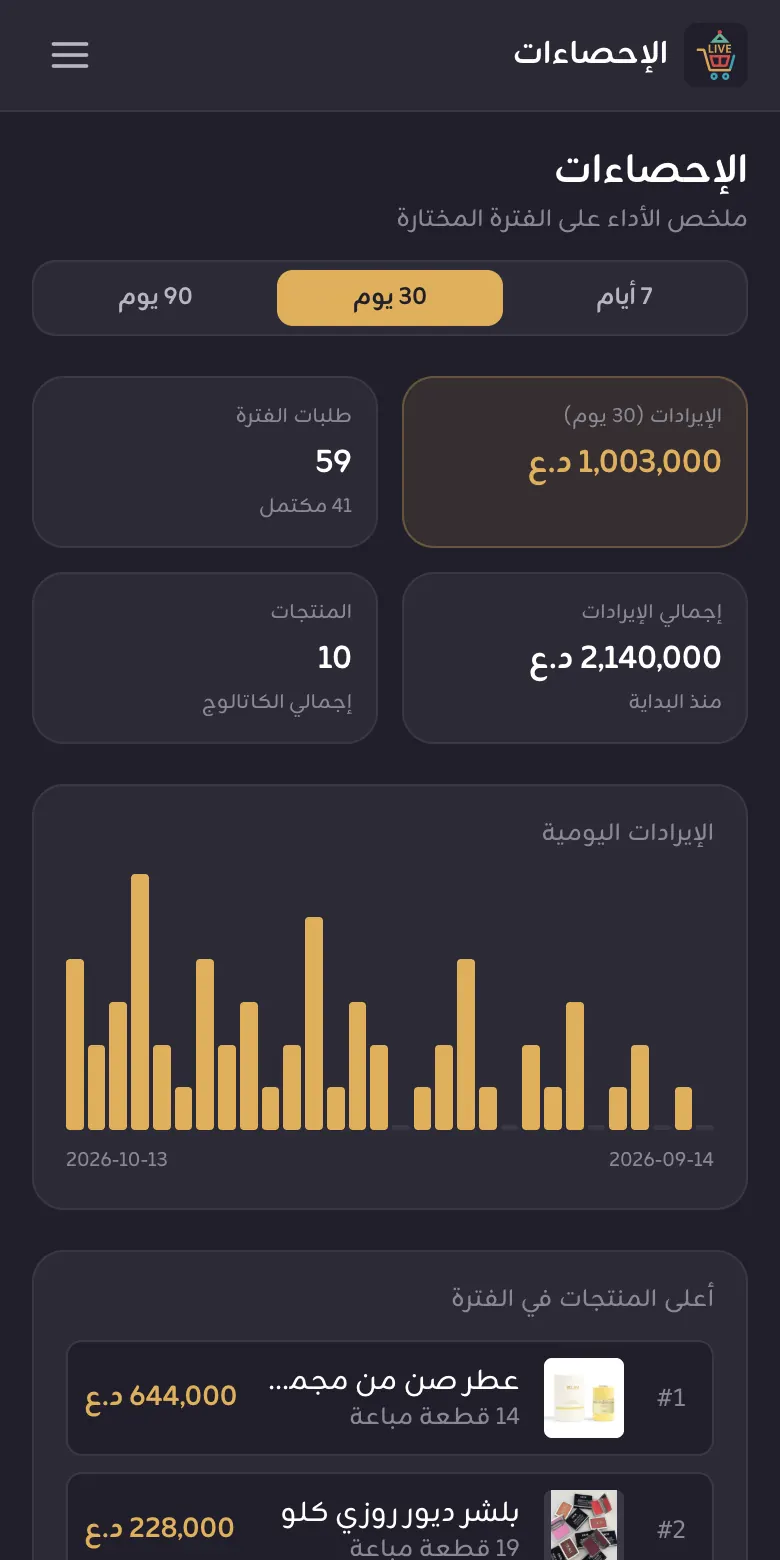
- Pick a period: 7, 30 or 90 days.
- الإيرادات (revenue) counts completed orders only, without delivery fees.
- طلبات الفترة (orders in period) counts every order in any status, with the completed count below.
- أعلى المنتجات في الفترة (top products) shows what sells best, so feature it in your streams.
Common mistakes
Check this list before contacting support.
- Imported products not visible to customers? Imports are hidden. Activate them with bulk edit → status → active.
- Can't add a product? Make sure your identity verification is approved in the app.
- Product in the wrong category? The dashboard pre-selects the first category; change it in the edit panel.
- Auction product not showing in the app? Auctions are for live streams only. Use direct sale for normal selling.
- "Server error" when uploading? The file is probably too big: photos up to 10 MB, videos up to 50 MB.
- Error message in English? Switch your browser or phone to Arabic.
- Want to cancel an order? Only while it is awaiting confirmation or confirmed. After that, contact support.
- Forgot your password? Reset it from the Souqtopia app.
Need help?
The Souqtopia team is here for you, Sunday to Thursday.